
Huss Valley Controls and Abilities
Use a control check followed by a purchase check. The input chart is a dated community reference; current bindings, item descriptions and your assigned role determine which action applies in the match you are playing.
Advertisement
Read the desktop chart as a dated reference
The Pro Game Guides report, updated October 6 and rechecked October 14, lists WASD movement, a lateral dash using Space with A or D, Alt to stop and E for interaction. These are community-reported desktop inputs rather than a complete developer manual. The official Huss Valley page identifies the correct experience but does not specify all of those bindings. Compare them with the live settings before practicing.
Keep each input attached to its action. A direction, a dash and a stop have different purposes, so pressing several together does not provide a clear test of any one response. Start in a situation where you can observe the result and explain the destination. If a recorded action differs from the current interface, save that difference with your device and source date rather than assuming every keyboard list is interchangeable.
Dated desktop input reference
| Action | Community-reported input | Current check |
|---|---|---|
| Move | W, A, S, D | Device bindings and direction |
| Lateral dash | Space with A or D | Direction and landing space |
| Stop | Alt | Present binding and movement response |
| Interact | E | Visible prompt and intended target |
Gameplay reference
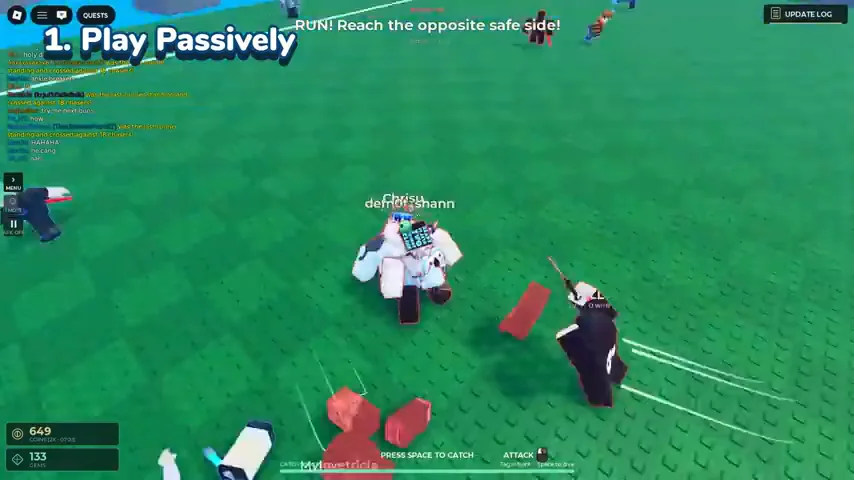
A Catcher scene in Chrisu’s October 7 recording, with role-specific action prompts along the bottom. Compare the current role and device bindings rather than copying Runner inputs.
Chrisu · 03:35 · Reviewed 2026-10-14
Test inputs without changing the whole setup
Try movement on its own, then release the direction and observe the response. Next try a direction change, the available lateral action and the stopping input separately. The community source describes acceleration-based movement, so the distance after a command deserves attention. An input that registered may still carry the character into a poor position if you did not leave enough space for its response.
Write the test as intended action, input and visible result. If you change a control setting, repeat the same simple action before changing another setting. This gives the adjustment a comparison. The chart does not certify current acceleration values, dash cooldown or network timing. It helps you identify which response is unclear so the next test concerns that particular action.
Use device prompts for mobile and console
A PC combination does not establish a controller or touch equivalent. Follow the action prompts and settings available on your current device. Confirm that a button refers to the intended action before using the desktop chart to interpret its result. If an interface offers a different layout, learn that layout directly instead of assuming the same physical input exists everywhere.
Keep camera handling separate from movement and interaction. An action can occur correctly while the camera makes its result difficult to see. Observe the character's position and current target after the attempt. Where a menu has focus, check whether the input is acting on that menu rather than the match. These are interface checks you can perform without inventing a hidden keybinding or treating a device-specific problem as evidence that an ability is broken.
Check the target before using an interaction
Read the displayed prompt and identify the object, player or menu it refers to. A nearby target may offer a different action from the one you intended. Your assigned role and current objective provide context for whether that action advances the task. Record what the prompt said if the result is unexpected; a generic interaction key does not explain which target received the command.
After acting, look for a changed state or credited result. If the same prompt remains, inspect whether the interaction had another prerequisite or confirmation rather than immediately repeating it many times. Narrow the observation to the target and response. This keeps an interface question separate from a shop decision, and prevents buying an item to address a situation that was actually about selecting the intended interaction.
Separate Gems and Coins in a purchase card
Community coverage identifies Gems for abilities and Coins for consumables. Before spending, record the current item name, currency, price, role and description. Do not combine the two balances into one purchasing total. Even if the amounts look similar, the offer determines which balance can be used. Exact current prices are intentionally read from the shop rather than copied from an older ranked list.
Protect any balance already assigned to a different choice and calculate what remains available. A consumable and an ability may also have different persistence or use conditions, so inspect the current description rather than inferring permanence from the word upgrade. Verify the purchase response and resulting inventory afterward. A useful purchase plan describes both what it costs and what visible capability you expect to have available next.
Advertisement
Compare the effect with the current role
The dated source uses Cloak, Pocket Door and Rufus's Leash as examples of different options. Their names are recognition cues, not evidence that all three solve the same problem. Read the actual effect and role restrictions. A visibility change should not be interpreted as guaranteed immunity; an obstruction needs relevant placement; a Chaser pressure option belongs to the corresponding role context.
State the problem you want the effect to address before choosing it. A late decision may call for practice, while an item intended to interrupt pressure still needs a situation in which that interruption is useful. Compare the offer with the space and role you saw in the last round. Keep a creator's advanced account, opponents and recording date in mind when a dramatic demonstration makes the item look universally effective.
Evaluate the purchase through one observable result
After obtaining an option, confirm where it appears and how the current interface says it is used. Test the intended effect without changing every other part of the plan. Record the context, action and result. A successful activation and a successful crossing are distinct observations; the first can occur while the route chosen afterward still fails. That distinction makes the review useful even when the match result is disappointing.
If the option does not behave as expected, reread its description and requirement. Check whether you are in the permitted role, whether the target is appropriate and whether the visible response shows use or unavailability. Avoid assigning a fixed range, cooldown or duration from a single clip. The purpose of the test is to understand the effect you actually have, not to declare a current tier ranking without comparable evidence.
Keep a dated reference you can refresh
Save device, action, current binding and any shop requirement beside the check you performed. If a patch changes the label or response, preserve the earlier record as historical context and use the current value for the next session. A source updated on a particular date is not proof that its controls were checked against every later build. The sparse official description makes visible evidence especially useful for a correction.
Use the beginner page when role context or the correct experience needs clarifying. Use the Runner article for a lane, alternative and crossing review once your inputs are understood. Glint's control chart and purchase card organize those tasks without claiming a personal mechanics test, verified active codes or guaranteed wins. The linked creator recording supplies visual context; the live prompt supplies the check for an action you intend to take now.
Video evidence
Huss Valley role and movement reference
Dated creator context. Observe movement after the input and compare current prompts; desktop mappings are not assumed for other devices.
Sources & methodology
Correct experience by Huss Valley Official. Identity and developer description rechecked through the Roblox Games API on October 14, 2026; detailed community mechanics are separately attributed.
Updated October 6, 2026; rechecked October 14. Source for the reported desktop chart and currency distinction, not a current price or timing feed.
Official promotional image from the Huss Valley Roblox gallery by Huss Valley Official, checked October 14, 2026. The gameplay figure is a limited, attributed still from the linked Chrisu recording at 03:35; original game art and recording rights remain with their owners.
FAQ
What desktop controls are reported?
The dated community chart lists WASD, Space with A or D for a lateral dash, Alt for stopping and E for interaction. Verify the current bindings and device prompts.
Can Coins buy every ability?
The source distinguishes Coins for consumables and Gems for abilities. Read the currency on the current offer instead of assuming that balances are interchangeable.
Does Cloak guarantee immunity?
No immunity guarantee is established here. Compare the current effect, role and situation; a visibility change and protection from a hit are different claims.
Related Pages
Advertisement